To add a remote switch, there are two different approaches depending on whether you already have a remote control or Telldus Tellstick that can control the switch or not.
The easiest way is if you already have a remote control or Telldus Tellstick that can control your switch. If you have a remote control, click all the buttons on it one by one and the RF-Hub will add it as a remote control. If you have a Telldus Tellstick, you do the same — click all the buttons in Telldus Live so RF-Hub can capture those signals.
The advantage of adding existing remote controls instead of creating new ones is that RF-Hub will keep track of whether the switch is turned on with the remote control and display the correct status.
If you do not already have a remote control, you can create new virtual remote controls in RF-Hub. You do this by going to Devices and clicking "+ Add Remote Control".

A window will appear where you can name the remote control and choose how many buttons you want. ID is a unique identifier for the remote control and normally you can just use the randomly generated value.
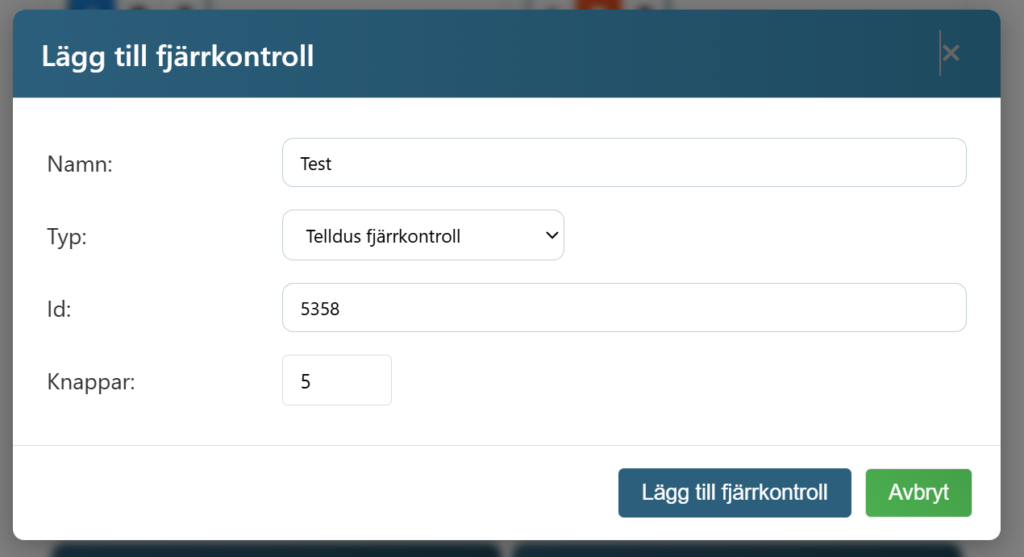
Then you need to choose which type of remote control you want to create. There are currently 5 different types.
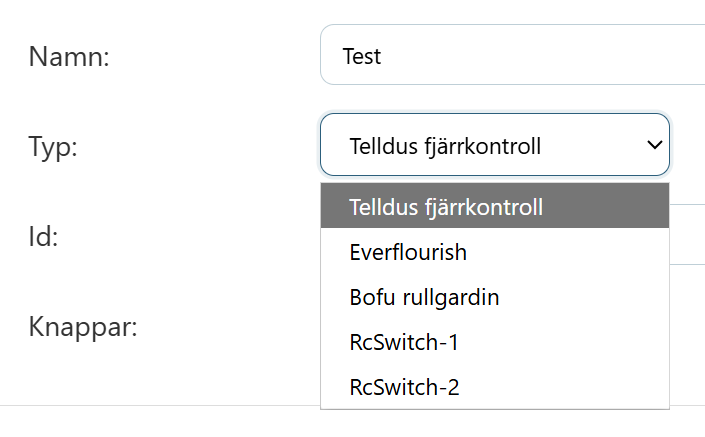
You choose the type of remote control as follows:
- Telldus remote control — Nexa, Telldus, Proove, Clas Ohlson, GAO, Rusta, Kjell & Company, Otis, Sartano, Arctech etc.
- Everflourish — Some Everflourish models are compatible with Telldus and others with this standard.
- Bofu roller blind — Bofu roller blinds sold by StyraHem, m.nu and others.
- RcSwitch-1 / Sonoff — Sonoff's RF products
- RcSwitch-2 — Works with many common remote controls, e.g. for a regular TV.
Here are some examples of different remote controls.
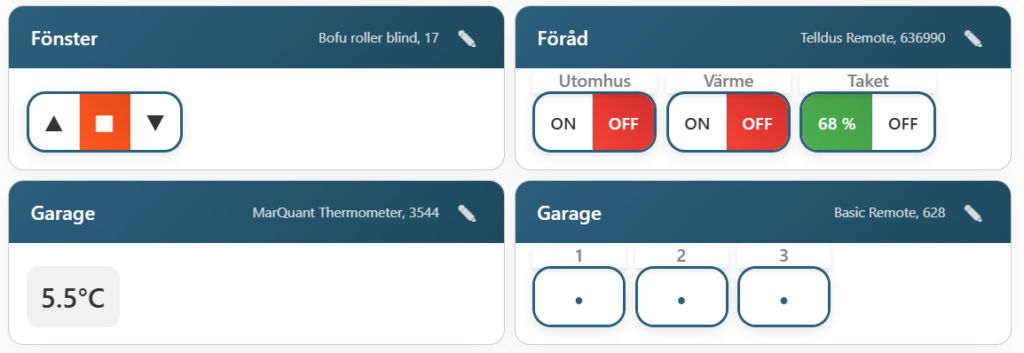
By clicking the pen icon, you can name the device and its individual buttons and change the order. For some endpoints, you can also change the type, e.g. between on/off or dimmer. Here you will also find the button to teach your switch that it should be controlled by this particular button.
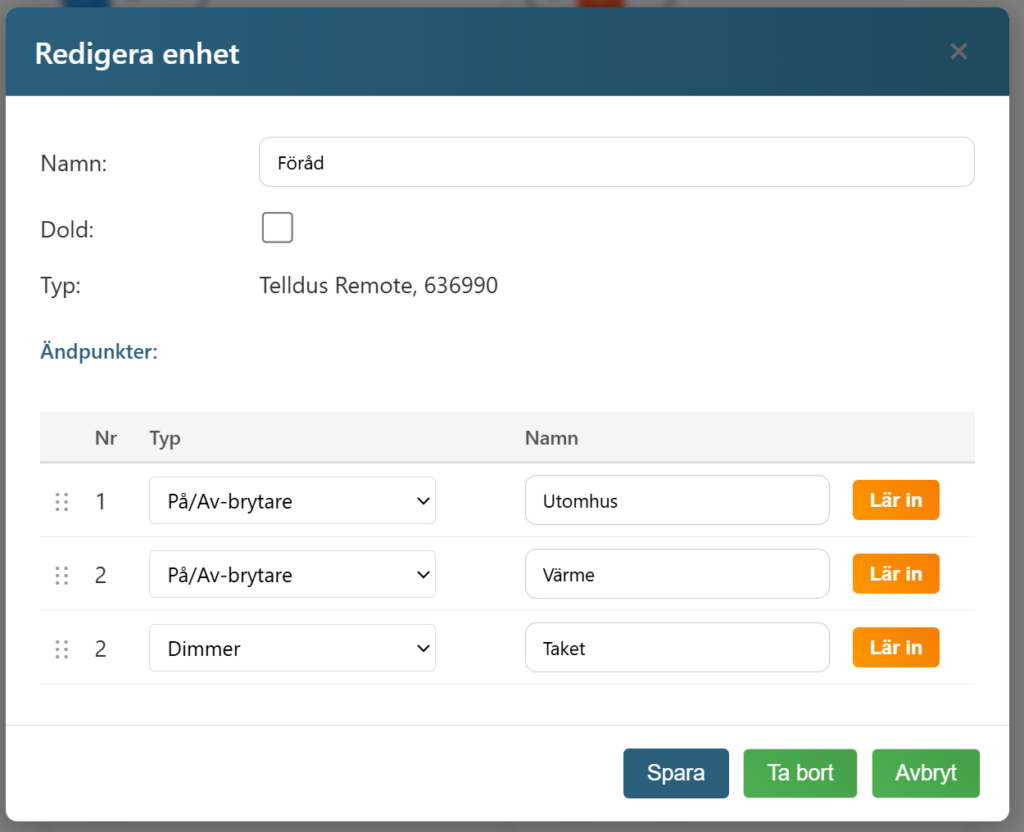
To teach a switch, put it in learning mode. This is often done by holding the button on it for 5–10 seconds. When the switch is in learning mode, click the "Learn" button in RF-Hub and the device usually confirms it with a sound or by returning to normal mode.
Now you can control it by clicking the button. If you have it connected to Homey or Home Assistant, the switches will also appear there as buttons etc.